Showing posts with label Javascript. Show all posts

Thursday, 9 February 2012

Implementing XML HTTP AJAX with JSON in ASP.NET (Cascading Dropdown, retain the list and selection)


Previously I was blogged one post related to Implementing XML HTTP AJAX with JSON concept in ASP.NET Web Pages. But I forgot to include some more functionality such as retaining the UI content created in client side after post back, retaining dropdown box list and selection after post back etc. This post provides examples by implementing the same functionalities.

Before going to the actual implementation, let us understand the UI requirement of this example.
  1. Require an UI with three cascading dropdown boxes.
  2. The first dropdown box should show list of Countries from the database. This dropdown will be filled when loading the page. (So if post back happening, this dropdown box will not lose the lists and selected index)
  3. The second dropdown box should show list of Cities which are under the Country selected in the first dropdown. As this dropdown require the Country dropdown selected value, this will be filled once the first dropdown selected.
    So on selection of the first dropdown, there will be an AJAX call to the server to get the list of cities using JSON and the values will be filled using JavaScript. As this dropdown lists are created in client side, this lists and selected index will lose when the post back happening.
  4. The third dropdown box should show list of Customers located under City selected in the second dropdown. This dropdown will also act like same as second dropdown i.e., once the City dropdown selected, this drop down box will be filled. As the dropdown list are created in client side, the list and selected index will not retain when post back happening.
  5. There will be a Process button, which is a server control will call a server event on click. So when the user presses this button it PostBack the page.
  6. There will be a GridView, will show list of orders raised for the customer. This will be filled when the Process button clicked.
In this implementation, normally we will get the following issues.
  1. The dropdown box City and Country lists are added in the client side. The concept is, when any post back happens the content created in the client side will lose its state. So when Process button clicked the two dropdown box list will lose and it will show empty only once the page rendered.
  2. As the dropdown box lists are created in client side (JavaScript/JQuery), the server won’t know what the list added are and its values. So when Process button clicked, we will not be able to find the Selected Index or Selected Value of those dropdown boxes.
We have various ways to solve this issue, but I feel the easy way is to use hidden controls to save the state of the controls created in the client side before post back happening and restore it once the post back completed.

For example, in our implementation the post back is happening when clicking the Process button. So the following steps needed to retain the state of the dropdown boxes.
  1. On click of the Process button, it should first call the JavaScript function to save the state of the dropdown boxes (such as the lists and the selected Index) then call the server method. This can be done by defining OnClientClick function of the button.
  2. Declare a div control for each dropdown box and name unique id. So one div control (ex – divCity) will have once dropdown control (DDLCity).
  3. Declare a hidden control for each dropdown box to hold the state of the dropdown box. This control should be defined in outside of the div control declared in above step.
  4. To get the state of the dropdown box we can take the innerHTML script of the div control. So the innerHTML will give its dropdown box lists. (Note - The script won’t include the Selected property for the dropdown. So change script to have Selected property for selected Index)
  5. Assign the HTML script to the hidden control declared for that dropdown box. So the dropdown box state is now with the hidden control. (Note – assigning the actual script will raise issue when post back. So it should be encrypted and assigned.)
  6. Define an OnLoad JavaScript function for the page, so once the post back completed it will call this function. This function will assign the HTML script to the corresponding div control. So the dropdown box will be filled again with Selected Index. (after decrypting the script)
So the screen, it looks like retaining the state of the controls created on client side. The implementation follows.

The ASPX script – (Default.aspx)
<div>
    <table>
        <tr>
            <td><b>Country</b></td>
            <td><asp:DropDownList runat="server" ID="DDLCountry" Width="250px" DataTextField="Country" DataValueField="Country" onchange="BindCity(this.id)">
                </asp:DropDownList>
            </td>
        </tr>
        <tr>
            <td><b>City</b></td>
            <td>
                <div id="divCity">
                    <asp:DropDownList runat="server" ID="DDLCity" Width="250px" onchange="BindCustomer(this.id)">
                        <asp:ListItem Text="Select" Value="0"></asp:ListItem>
                    </asp:DropDownList>
                </div>
                <asp:HiddenField ID="hndCityDropdown" runat="server" Value="" />
            </td>
        </tr>
        <tr>
            <td><b>Customer</b></td>
            <td>
                <div id="divCustomer">
                    <asp:DropDownList runat="server" ID="DDLCustomer" Width="250px">
                        <asp:ListItem Text="Select" Value="0"></asp:ListItem>
                    </asp:DropDownList>
                </div>
                <asp:HiddenField ID="hndCustomerID" runat="server" Value="0" />
                <asp:HiddenField ID="hndCustomerDropdown" runat="server" Value="" />
            </td>
        </tr>
        <tr>
            <td colspan="2" style="text-align:right">
                <asp:Button ID="btnProcess" Text="Process" runat="server" Width="100px" 
                    onclick="btnProcess_Click" OnClientClick="AssignHiddenValues()" />
            </td>
        </tr>
    </table>
    <asp:GridView ID="grdViewOrders" runat="server"
        AllowPaging="True" AutoGenerateColumns="False" TabIndex="1"
        DataKeyNames="OrderID" Width="100%" GridLines="None"
        CellPadding="3" AllowSorting="True"
        onpageindexchanging="grdViewOrders_PageIndexChanging" 
        BackColor="White" BorderColor="White" BorderWidth="2px" 
        BorderStyle="Ridge" CellSpacing="1">
        <Columns>
            <asp:BoundField DataField="OrderID" HeaderText="Order ID" />
            <asp:BoundField DataField="CustomerID" HeaderText="Customer ID"  />
            <asp:BoundField DataField="OrderDate" HeaderText="Order Date" DataFormatString="{0:dd-MMMM-yyyy}" />
            <asp:BoundField DataField="RequiredDate" HeaderText="Required Date" DataFormatString="{0:dd-MMMM-yyyy}" />
            <asp:BoundField DataField="ShippedDate" HeaderText="Shipped Date" DataFormatString="{0:dd-MMMM-yyyy}" />
            <asp:BoundField DataField="Freight" HeaderText="Freight" />
            <asp:BoundField DataField="ShipName" HeaderText="Ship Name" />
        </Columns>
        <FooterStyle BackColor="#C6C3C6" ForeColor="Black" />
        <PagerStyle BackColor="#C6C3C6" ForeColor="Black" HorizontalAlign="Right" />
        <RowStyle BackColor="#DEDFDE" ForeColor="Black" />
        <SelectedRowStyle BackColor="#9471DE" ForeColor="White" Font-Bold="True" />
        <HeaderStyle BackColor="#4A3C8C" Font-Bold="True" ForeColor="#E7E7FF" />
        <SortedAscendingCellStyle BackColor="#F1F1F1" />
        <SortedAscendingHeaderStyle BackColor="#594B9C" />
        <SortedDescendingCellStyle BackColor="#CAC9C9" />
        <SortedDescendingHeaderStyle BackColor="#33276A" />
    </asp:GridView>
</div>
If you take the City dropdown box, it has divCity to get the innerHTML (and to get assigned back) and hndCityDropdown for holding the html script of the div.

As like the same in Customer drop down, but additionally we have hndCustomerID for getting the Customer Id in the server. Because as the Customer dropdown created in the client side, the selected index also will known at server code.

Define a onload event for the page and define the load event.
<body onload="load()" onunload="unload()">
</body>
The other JavaScript functions for getting the dropdown lists using JSON object.
var is_ie = (navigator.userAgent.indexOf('MSIE') >= 0) ? 1 : 0;
var is_ie5 = (navigator.appVersion.indexOf("MSIE 5.5") != -1) ? 1 : 0;
var xmlHttp;

var vDDLCountryClientID;
var vDDLCityClientID;
var vDDLCustomerClientID;

var vhndCustomerId;
var vhndCityDropdown;
var vhndCustomerDropdown;

function load() {

    vDDLCountryClientID = '<%= DDLCountry.ClientID %>';
    vDDLCityClientID = '<%= DDLCity.ClientID %>';
    vDDLCustomerClientID = '<%= DDLCustomer.ClientID %>';

    vhndCustomerId = '<%= hndCustomerID.ClientID %>';
    vhndCityDropdown = '<%= hndCityDropdown.ClientID %>';
    vhndCustomerDropdown = '<%= hndCustomerDropdown.ClientID %>';

    if (document.getElementById(vhndCityDropdown).value.length > 0)
        document.getElementById('divCity').innerHTML = unescape(document.getElementById(vhndCityDropdown).value);

    if (document.getElementById(vhndCustomerDropdown).value.length > 0)
        document.getElementById('divCustomer').innerHTML = unescape(document.getElementById(vhndCustomerDropdown).value);

}
function unload() {
// Use this when no other way to find an event before post back. Because some browser wont fire this event
}

/* This function requests the HTTPRequest, will be used to render the Dynamic content html markup 
* and it will call HandleBindCityResponse to handle the response
*/
function BindCity(id) {
    var url = 'GetAJAXResponse.aspx?CountryID=' + document.getElementById(id).value + '&CallType=CityList';
    xmlHttp = createAjaxObject();
    if (xmlHttp) {
        xmlHttp.open('get', url, true);
        xmlHttp.onreadystatechange = HandleBindCityResponse;
        xmlHttp.send(null);
    }
}

/* This function is used to handler the http response 
 * This Function will bind the City in the dropdown. 
 * When the request is in Server, the dropdown will be Loading... and once client got the response it will bind the items.*/
function HandleBindCityResponse() {

    // If Response completed
    if (xmlHttp.readyState == 4) {

        // Here is the response
        var strResponse = xmlHttp.responseText;

        // Parsing the JSON Response
        // As I generated JSON from Collection, I am getting it back as Array here
        var ArrCities = eval("(" + strResponse + ")");

        // Getting the city Dropdown
        var DDLCity = document.getElementById(vDDLCityClientID);
        while (DDLCity.childNodes.length > 0)
            DDLCity.removeChild(DDLCity.childNodes[0]); // Removing every list item

        var option = document.createElement("option");
        option.value = "0"; 
        option.innerHTML = "Select";
        DDLCity.appendChild(option);

        // Looping the array
        for (var intIndex = 0; intIndex < ArrCities.length; intIndex++) {

            var option = document.createElement("option");
            option.value = ArrCities[intIndex]["CityID"];
            option.innerHTML = ArrCities[intIndex]["CityName"];
            DDLCity.appendChild(option);

        }
        document.getElementById(vDDLCityClientID).disabled = false;
        xmlHttp.abort();
    }
    else {
        ResetDropdown(vDDLCityClientID, 'Loading...');
        ResetDropdown(vDDLCustomerClientID, 'Select City');
    }
}

/* This function requests the HTTPRequest, will be used to render the Dynamic content html markup 
 * and it will call HandleCustomerListResponse to handle the response
 */
function BindCustomer(id) {
    if (document.getElementById(id).value.length > 0) {
        var url = 'GetAJAXResponse.aspx?CountryID=' + document.getElementById(vDDLCountryClientID).value + '&CityID=' + document.getElementById(id).value + '&CallType=CustomerList';
        xmlHttp = createAjaxObject();
        if (xmlHttp) {
            xmlHttp.open('get', url, true);
            xmlHttp.onreadystatechange = HandleCustomerListResponse;
            xmlHttp.send(null);
        }
    }
}

/* This function is used to handler the http response
 * The function will fetch the details of selected item and populate in the respective field.
 * The the request is on the server, there will be a Waiting for your request message in the screen. */
function HandleCustomerListResponse() {

    // If Response completed
    if (xmlHttp.readyState == 4) {

        // Here is the response
        var strResponse = xmlHttp.responseText;

        // Parsing the JSON Response
        // As I generated JSON from Collection, I am getting it back as Array here
        var ArrCustomer = eval("(" + strResponse + ")");

        // Getting the customer Dropdown
        var DDLCustomer = document.getElementById(vDDLCustomerClientID);
        while (DDLCustomer.childNodes.length > 0)
            DDLCustomer.removeChild(DDLCustomer.childNodes[0]); // Removing every list item

        var option = document.createElement("option");
        option.value = "0";
        option.innerHTML = "Select";
        DDLCustomer.appendChild(option);

        // Looping the array
        for (var intIndex = 0; intIndex < ArrCustomer.length; intIndex++) {

            var option = document.createElement("option");
            option.value = ArrCustomer[intIndex]["CustomerID"];
            option.innerHTML = ArrCustomer[intIndex]["CustomerName"];
            DDLCustomer.appendChild(option);

        }
        document.getElementById(vDDLCustomerClientID).disabled = false;
        xmlHttp.abort();
    }
    else {
        ResetDropdown(vDDLCustomerClientID, 'Loading');
    }
}

/* function to create Ajax object */
function createAjaxObject() {
    var ro;
    var browser = navigator.appName;
    if (browser == "Microsoft Internet Explorer") {
        if (xmlHttp != null) {
            xmlHttp.abort();
        }
        ro = new ActiveXObject("Microsoft.XMLHTTP");
    }
    else {
        if (xmlHttp != null) {
            xmlHttp.abort();
        }
        ro = new XMLHttpRequest();
    }
    return ro;
}

/* Get the XML Http Object */
function GetXmlHttpObject(handler) {
    var objXmlHttp = null;
    if (is_ie) {
        var strObjName = (is_ie5) ? 'Microsoft.XMLHTTP' : 'Msxml2.XMLHTTP';

        try {
            objXmlHttp = new ActiveXObject(strObjName);
            objXmlHttp.onreadystatechange = handler;
        }
        catch (e) {
            alert('Object could not be created');
            return;
        }
    }
    return objXmlHttp;
}

function xmlHttp_Get(xmlhttp, url) {
    xmlhttp.open('GET', url, true);
    xmlhttp.send(null);
}

// function to assign Product Value in the Hidden control
// Because as the dropdown items are added in Client side, it wont be accessible in code behind.
// As this event called just before post back, we can get the dropdown box HTML script and store it in hidden control. So it can be replaced after post back completed.
function AssignHiddenValues() {
    
    if (document.getElementById(vDDLCustomerClientID).value.length > 0) {

        var browserName = navigator.appName;
        if (browserName == "Microsoft Internet Explorer") {

            // Assigning to Customer ID hidden control for getting the Customer ID for fetching records for Grid (here Customer Id is the key for filtering the records)
            document.getElementById(vhndCustomerId).value = document.getElementById(vDDLCustomerClientID).value;
            
            // Assigning the City dropdown box HTML script for hidden control for retaining the dropdown box list after post back
            document.getElementById(vhndCityDropdown).value = escapeTxt(document.getElementById(vDDLCityClientID).outerHTML.replace('value="' + document.getElementById(vDDLCityClientID).value + '"', 'selected value="' + document.getElementById(vDDLCityClientID).value + '"'))

            // Assigning the Customer dropdown box HTML script for hidden control for retaining the dropdown box list after post back
            document.getElementById(vhndCustomerDropdown).value = escapeTxt(document.getElementById(vDDLCustomerClientID).outerHTML.replace('value="' + document.getElementById(vDDLCustomerClientID).value + '"', 'selected value="' + document.getElementById(vDDLCustomerClientID).value + '"'))
        }
        else {
            // Assigning to Customer ID hidden control for getting the Customer ID for fetching records for Grid (here Customer Id is the key for filtering the records)
            document.getElementById(vhndCustomerId).value = document.getElementById(vDDLCustomerClientID).value;

            // Assigning the City dropdown box HTML script for hidden control for retaining the dropdown box list after post back
            document.getElementById(vhndCityDropdown).value = escapeTxt(outerHTML(document.getElementById(vDDLCityClientID)).replace('value="' + document.getElementById(vDDLCityClientID).value + '"', 'selected value="' + document.getElementById(vDDLCityClientID).value + '"'))

            // Assigning the Customer dropdown box HTML script for hidden control for retaining the dropdown box list after post back
            document.getElementById(vhndCustomerDropdown).value = escapeTxt(outerHTML(document.getElementById(vDDLCustomerClientID)).replace('value="' + document.getElementById(vDDLCustomerClientID).value + '"', 'selected value="' + document.getElementById(vDDLCustomerClientID).value + '"'))
        }
        return true;
    }
    else {
        alert('Please select Product and Press Process');
        return false;
    }
}

function outerHTML(node) {
    return node.outerHTML || new XMLSerializer().serializeToString(node);
}

function ResetDropdown(id, msg) {
    document.getElementById(id).disabled = true;

    // Getting the Customer Dropdown
    var DDL = document.getElementById(id);
    while (DDL.childNodes.length > 0)
        DDL.removeChild(DDL.childNodes[0]); // Removing every list item

    var option = document.createElement("option");
    option.value = "0";
    option.innerHTML = msg;
    DDL.appendChild(option);
}

// CONVERTS *ALL* CHARACTERS INTO ESCAPED VERSIONS.
function escapeTxt(os) {
    var ns = '';
    var t;
    var chr = '';
    var cc = '';
    var tn = '';
    for (i = 0; i < 256; i++) {
        tn = i.toString(16);
        if (tn.length < 2) tn = "0" + tn;
        cc += tn;
        chr += unescape('%' + tn);
    }
    cc = cc.toUpperCase();
    os.replace(String.fromCharCode(13) + '', "%13");
    for (q = 0; q < os.length; q++) {
        t = os.substr(q, 1);
        for (i = 0; i < chr.length; i++) {
            if (t == chr.substr(i, 1)) {
                t = t.replace(chr.substr(i, 1), "%" + cc.substr(i * 2, 2));
                i = chr.length;
            }
        }
        ns += t;
    }
    return ns;
}
The C# code behind
protected void Page_Load(object sender, EventArgs e)
{
    if (!Page.IsPostBack)
    {
        BindCountryDropdown();
    }
}

protected void btnProcess_Click(object sender, EventArgs e)
{
    grdViewOrders.PageIndex = 0;
    BindGrid();
}

protected void grdViewOrders_PageIndexChanging(object sender, GridViewPageEventArgs e)
{
    grdViewOrders.PageIndex = e.NewPageIndex;
    BindGrid();
}

private void BindGrid()
{
    if (hndCustomerID.Value.Trim().Length &gt; 0)
    {
        using (SqlConnection connection = new SqlConnection(ConfigurationManager.ConnectionStrings[&quot;SQLConnection&quot;].ConnectionString))
        {

            SqlDataAdapter dataAdapter = new SqlDataAdapter(
                    &quot;SELECT OrderID, CustomerID, OrderDate, RequiredDate, ShippedDate, Freight, ShipName &quot; +
                    &quot;FROM Orders WHERE CustomerID = '&quot; + hndCustomerID.Value + &quot;'&quot;, connection);

            DataSet ds = new DataSet();
            connection.Open();
            dataAdapter.Fill(ds);

            grdViewOrders.DataSource = ds.Tables[0];
            grdViewOrders.DataBind();
        }
    }
}

public void BindCountryDropdown()
{
    using (SqlConnection connection = new SqlConnection(ConfigurationManager.ConnectionStrings[&quot;SQLConnection&quot;].ConnectionString))
    {
        SqlDataAdapter adaptor = new SqlDataAdapter(&quot;SELECT DISTINCT Country FROM Customers&quot;, connection);

        DataSet ds = new DataSet();

        connection.Open();
        adaptor.Fill(ds);

        DDLCountry.DataSource = ds.Tables[0];
        DDLCountry.DataBind();
        DDLCountry.Items.Insert(0, new ListItem(&quot;Select&quot;, &quot;0&quot;));
    }
}

Below is the ASPX page code behind which returns the JSON object (GetAJAXResponse. This page called using XML HTTP AJAX from the JavaScript function.
protected void Page_Load(object sender, EventArgs e)
{
    string strResponse = string.Empty;

    if (Request.QueryString["CallType"] != null)
    {
        string strCallType = Request.QueryString["CallType"].ToString();
        if (strCallType == "CityList")
        {
            if (Request.QueryString["CountryID"] != null)
                strResponse = GetCityList(Request.QueryString["CountryID"].ToString());
        }
        if (strCallType == "CustomerList")
        {
            if ((Request.QueryString["CountryID"] != null) && 
                (Request.QueryString["CityID"] != null))
                strResponse = GetCustomerList(Request.QueryString["CountryID"].ToString(), Request.QueryString["CityID"].ToString());
        }
    }

    Response.Clear();
    Response.ContentType = "text/xml";
    Response.Write(strResponse);
    Response.End();
}

public string GetCityList(string strCountryID)
{
    using (SqlConnection connection = new SqlConnection(ConfigurationManager.ConnectionStrings["SQLConnection"].ConnectionString))
    {

        SqlCommand command = new SqlCommand(
                "SELECT DISTINCT City FROM Customers WHERE Country = '" + strCountryID + "'", connection);

        connection.Open();
        SqlDataReader dr = command.ExecuteReader(CommandBehavior.CloseConnection);

        IList<City> cityList = new List<City>();
        while (dr.Read())
        {
            City productView = new City();
            productView.CityID = dr["City"].ToString();
            productView.CityName = dr["City"].ToString();
            cityList.Add(productView);
        }

        // I am delaying the response to see the Loading... message on the dropdown
        System.Threading.Thread.Sleep(1000);

        System.Web.Script.Serialization.JavaScriptSerializer objSerializer = 
                new System.Web.Script.Serialization.JavaScriptSerializer();

        return objSerializer.Serialize(cityList);
    }
}

public string GetCustomerList(string strCountryID, string strCityID)
{
    using (SqlConnection connection = new SqlConnection(ConfigurationManager.ConnectionStrings["SQLConnection"].ConnectionString))
    {

        SqlCommand command = new SqlCommand(
                "SELECT CustomerID, CompanyName FROM Customers WHERE Country = '" + strCountryID + "' AND City = '" + strCityID + "'", connection);

        connection.Open();
        SqlDataReader dr = command.ExecuteReader(CommandBehavior.CloseConnection);

        IList<Customer> customerList = new List<Customer>();
        while (dr.Read())
        {
            Customer customer = new Customer();
            customer.CustomerID = dr["CustomerID"].ToString();
            customer.CustomerName = dr["CompanyName"].ToString();
            customerList.Add(customer);
        }

        // I am delaying the response to see the Loading... message on the dropdown
        System.Threading.Thread.Sleep(1000);

        System.Web.Script.Serialization.JavaScriptSerializer objSerializer =
                new System.Web.Script.Serialization.JavaScriptSerializer();

        return objSerializer.Serialize(customerList);
    }
}
Below is the output of the page.


Second Implementation:

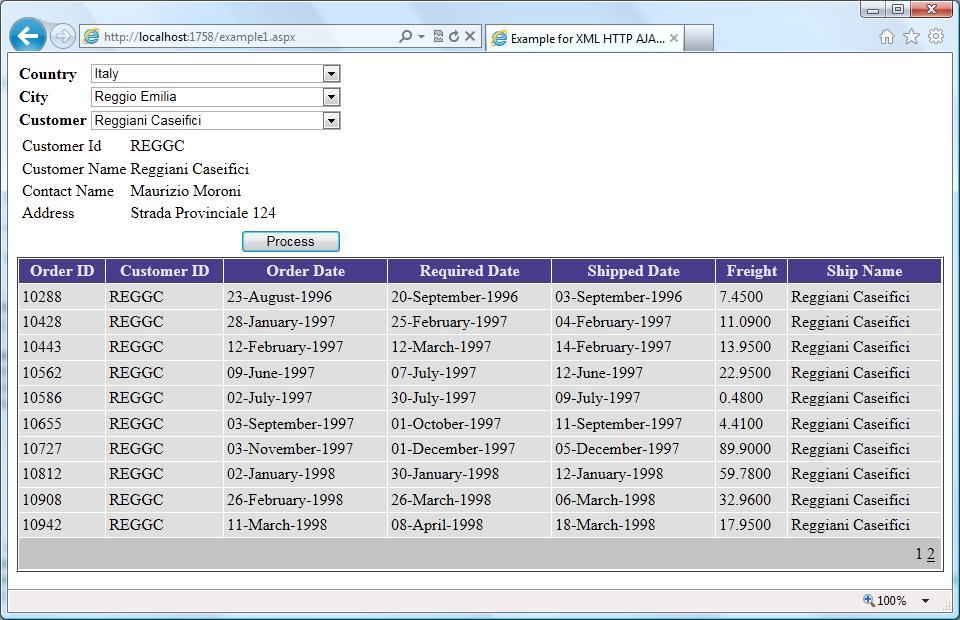
Addition to the above implementation, I wish to show the details of the customer when Customer dropdown selected. So when selecting a customer from Customer dropdown, it will call the server to get the details of the customer as a JSON object and show the details on the page.

As the details content created at the client side, this also will lose when post back happened. So I implemented the same way done previously to hold the state of the content.

I have not given the source code for this implementation in this page as it is almost same as above code. But the downloadable source code contains this implementation (Example1.aspx).

download the working copy of the source code n C# here and in VB here.

This code is been tested with IE 9.0, Firefox 10.0.

The output of the second implementation will be -
The video output of this example will be -


Saturday, 22 October 2011

Calling server method when closing the browser

This post provides implementation for calling server method when closing the browser. This example works fine with Internet Explorer.

The requirement of this example is defined below.
  1. When the user closing the browser, it should call the server method for storing the time the page open and close.
  2. In other example, when the user closing the browser it should confirm from the user whether they want to close the browser. If yes, it should call the server method to save the time the browser open and close. If not, stay in the page without doing anytime.

There are two example provided below. One is to achieve the first requirement and the other one is to achieve the second requirement.

Step 1: Creating a table (BrowserLifeTime) in SQL Server for storing the page open and close time.
CREATE TABLE [dbo].[BrowserLifeTime](
 [Id] [int] IDENTITY(1,1) NOT NULL,
 [ToDateTime] [datetime] NOT NULL,
 [FromDateTime] [datetime] NOT NULL,
 [Name] [varchar](50) NOT NULL
) ON [PRIMARY]
GO

Step 2: To call a server method, I am adding a WebService file (UploadService.asmx). The file is used to define a method which can call from server when closing the browser. (Note: There are lots of ways to call the server method from server, one is using WebService. You can use any other concepts such as XML HTTP AJAX, GenericHandler, WebServices etc.,)
[WebService(Namespace = "http://tempuri.org/")]
[WebServiceBinding(ConformsTo = WsiProfiles.BasicProfile1_1)]
[System.ComponentModel.ToolboxItem(false)]
[System.Web.Script.Services.ScriptService]
public class UnloadService : System.Web.Services.WebService
{
    [WebMethod]
    public void UpdateBrowserLife(string strStartDateTime, string strEndDateTime)
    {
        SqlConnection connection = null;
        try
        {
            connection = new SqlConnection(ConfigurationManager.ConnectionStrings["SQLConnection"].ToString());
            connection.Open();

            SqlCommand command = new SqlCommand("insert into BrowserLifeTime (ToDateTime, FromDateTime, Name) values ('" + strStartDateTime + "', '" + strEndDateTime + "', SYSTEM_USER)", connection);
            command.ExecuteNonQuery();
        }
        catch (Exception ex)
        {
            connection.Close();
        }
    }
}

Step 3: Below script for registering WebService proxy.
<asp:ScriptManager ID="ScriptManager1" runat="server">
    <Services>
        <asp:ServiceReference Path="~/UnloadService.asmx" />
    </Services>
</asp:ScriptManager>
Step 4: Below Javascript code is to implement the first requirement – call server method when closing browser without any confirmation.
<script type="text/javascript" language="javascript">
    var startDateTime = new Date();
    var m_names = new Array("January", "February", "March", "April", "May", "June", "July", "August", "September", "October", "November", "December");
    startDateTime = startDateTime.getDate() + "-" + m_names[startDateTime.getMonth()] + "-" + startDateTime.getFullYear() + " " + startDateTime.getHours() + ":" + startDateTime.getMinutes() + ":" + startDateTime.getSeconds();

    var browserName = navigator.appName; // Get the Browser Name

    if (browserName == "Microsoft Internet Explorer") {
        window.onload = HandleOnClose;
    }
    else {
        window.onbeforeunload = HandleOnClose;
    } 

    function HandleOnClose() {
        var endDateTime = new Date();
        endDateTime = endDateTime.getDate() + "-" + m_names[endDateTime.getMonth()] + "-" + endDateTime.getFullYear() + " " + endDateTime.getHours() + ":" + endDateTime.getMinutes() + ":" + endDateTime.getSeconds();

        CallServerOnUnload.UnloadService.UpdateBrowserLife(startDateTime, endDateTime);
        return true;
    }
</script>
Note: I tried in this requirement for implementing for other browsers (Firefox, Chrome, Opera). But seems not working. Below example implements only for IE.

Below Javascript code is to achieve the second requirement – calling server method once the confirmation from the user.
<script type="text/javascript" language="javascript">
    // Works in IE only.
    var startDateTime = new Date();
    var m_names = new Array("January", "February", "March", "April", "May", "June", "July", "August", "September", "October", "November", "December");
    startDateTime = startDateTime.getDate() + "-" + m_names[startDateTime.getMonth()] + "-" + startDateTime.getFullYear() + " " + startDateTime.getHours() + ":" + startDateTime.getMinutes() + ":" + startDateTime.getSeconds();
    
    window.onbeforeunload = CallBeforeUnload;
    window.onunload = HandleOnClose;
    function CallBeforeUnload() {
        return "Are you sure you really want to close?";
    }
    function HandleOnClose() {
        var endDateTime = new Date();
        endDateTime = endDateTime.getDate() + "-" + m_names[endDateTime.getMonth()] + "-" + endDateTime.getFullYear() + " " + endDateTime.getHours() + ":" + endDateTime.getMinutes() + ":" + endDateTime.getSeconds();
        CallServerOnUnload.UnloadService.UpdateBrowserLife(startDateTime, endDateTime);
    }
</script>
Download the source code in C# here and in VB here.

The output looks below

Saturday, 25 June 2011

Implementing ICallbackEventHandler in ASP.NET Web Pages

In this post we will discuss about how to call Server methods from client side using ICallBackHandler.

Normally in ASP.NET, when any server control invoke any of its events it will do a PostBack to the server and show the response by refreshing the whole page. This process will make the user to wait for the response even for a simple functionality also, for example getting some values from the database and show to the user on the page when selecting a dropdown list.

In such kind of situations, we required to avoid the postback process and use some other method to fetch the values from the client without rendering / refreshing the whole page. To achieve this kind of requirement .NET provides various ways such as:

  1. Call a Web Service method from the client side (JavaScript or JQuery).
  2. Call a remote page to generate required response using ASP.NET AJAX concept.
  3. Call a method from the same page implementing ICallBackHandler.
  4. Call an HttpHanlder method from Javascript.
  5. Call the events and refresh the page using ASP.NET AJAX Extension controls (Update Panel) – This method doing normal Postback only, but will refresh the page in partial.
  6. Define server method using [AjaxMethod] attribute and use Ajax.NET library to call from client.
  7. Etc.,

There are some problems of using these methods – they are

  1. Whatever the modification done thro’ client side programming (using Javascript or JQuery) will not be retained when a normal post back happening to the server. There must be some workaround required to handle to retain the values if it required for further usage after post back happened.
  2. At any stage if the page redirected to next page and the user press browser back button, the modifications done thro’ Javascript will not be retained.
  3. Transferring the values processed at client side to server side and vice-versa will be a difficult process compare to Post Back (In post back View State will handle easily).

How CallBack Handler works:

Before going for actual implementation, let us understand some background of how callback handler concept works and how it differs from normal post back.

ASP.NET Postback
  • When postback happening the request goes to the server. The server will recreate the web page and controls for entire page and return the entire script to the client.
  • As it is Synchronized processing model, the use has to wait till all the processing done and refreshed the page.
  • The data which gets transferred from client to server and server to client is huge compare to call back method.

ASP.NET callback
  • When call back happening, it will go to the server and create only the part of the page and control and respond to the client.
  • As it is Asynchronous processing model, the user can continue with another job. Once the response received, the necessary action will be taken on the code.
  • Less data gets transferred from client and server.

So considering the performance and user experience, implementing CallBackHanlder will give better result. But as explained before, the UI changes done at client side will not be retained for further usage.

Below figure shows a simple explanation about how the process flow happening when calling a method from client side using ICallBackHanlder implemented page.

CallBackHanlder process flow

Implementation:

I have already blogged a post which explains about how to implement XML HTTP AJAX in ASP.NET pages. I am going the implement the same example which was used in that post for explaining with ICallBackHandler. It also helps to understand how these two concepts can be implemented using XML HTTP AJAX and ICallBackHandler.

The scenario of this implementation is used to create user details. In some of the websites, we have seen in the user creation module when user enters login Id there will be a message whether user Available or Not available based on the user details already stored in the database and these messages will show to the user by not refreshing the whole page. Mostly those functionalities are done with AJAX concepts.

The implementation follows:

Implement ICallbackEventHandler interface in the page and define variables in the page.

public partial class _Default : System.Web.UI.Page, ICallbackEventHandler
{
    /// 
    /// This variable is used to transfer messages from RaiseCallBackEvent to GetCallbackResult events
    /// 
    private String strMessage;

    /// 
    /// This variable holds the callback event. This method will be called from client side 
    /// WebForm_DoCallback('__Page',eventArg,UserIdCallBackResult,null,null,false)
    /// 
    public String UserIdCallbackEvent;
}
Register call back event in page load event.
protected void Page_Load(object sender, EventArgs e)
{
    RegisterCallBackEvents();
}
/// <summary>
/// This method is used for registering call back event
/// </summary>
private void RegisterCallBackEvents()
{
    UserIdCallbackEvent = this.ClientScript.GetCallbackEventReference
        (this, "eventArg", "UserIdCallBackResult", "null", "null", false);
}
Here UserIdCallBackResult is the method defined at client side (Javascript) which is used to call back once the process done at server and eventArg is a variable defined at the client side which holds the parameter value.

The ICallbackEventHandler interface has two methods which required to be implemented in the page.

  • RaiseCallbackEvent - This event is called when the call from client side (Javascript). This is the event to handle the call back handler. Here eventArgs is a parameter which is passed from client side.
  • GetCallbackResult - This methos returns the result of the callback event to client side.
/// <summary>
/// This event will be called when the callback event called from client side
/// </summary>
/// <param name="eventArg">This parameter is the argument parameter from the client side javascript </param>
void ICallbackEventHandler.RaiseCallbackEvent(string eventArg)
{
    // Checking Customer Id exist in the database or not
    bool IsCustomerExist = IsUserIdExist(eventArg.ToString().ToUpper());

    strMessage = IsCustomerExist.ToString();
}
//Return a string that will be received and processed
// by the clientCallback JavaScript funtion
String ICallbackEventHandler.GetCallbackResult()
{
    return strMessage;
}

In the aspx page, define two Javascript function. Those functions are:
  1. A Javascript function which will be called by a control (aspx or html control). The Javascript function will call the server using the UserIdCallbackEvent from the client.
  2. Another method for processing when the response comes from the server. This method will be defined in the code behind in the PageLoad event. In our code, that has been defined in RegisterCallBackEvents method. The runtime will call back this client method once the response ready from the server.
// This method will be called by a control, which will call the serve call back event
function UserNameCheck(id) {
    document.getElementById('spanAvailableStatus').style.display = "none";
    document.getElementById('spanProcessing').style.display = "block";
    var eventArg = document.getElementById(id).value;
    <%=UserIdCallbackEvent%>
}

// This is the function which handles the response comes from the server once server processing over.
// This is the call back function
function UserIdCallBackResult(strMessage)
{
    if (strMessage == 'True') {
        document.getElementById('spanAvailableStatus').innerHTML = 'Not Available';
        document.getElementById('spanAvailableStatus').className = 'Red';
    }
    else {
        document.getElementById('spanAvailableStatus').innerHTML = 'Available';
        document.getElementById('spanAvailableStatus').className = 'Green';
    }
    document.getElementById('spanAvailableStatus').style.display = "block";
    document.getElementById('spanProcessing').style.display = "none";
}

I am calling function from User Id text box lost focus for validating whether the user exist or not.
<asp:TextBox ID="txtUserId" runat="server" Width="120px" onchange="UserNameCheck(this.id)" style="float:left;" CssClass="TextBoxStyle">

Following methods are used for supporting our requirement in this example.
/// <summary>
/// To save the user details at xml file
/// </summary>
/// <param name="sender"></param>
/// <param name="e"></param>
protected void btnSave_Click(object sender, EventArgs e)
{
    try
    {
        string strFileName = HttpContext.Current.Request.PhysicalApplicationPath + @"Data\UserDetails.xml";

        if (!File.Exists(strFileName))
        {
            XmlTextWriter textWritter = new XmlTextWriter(strFileName, null);
            textWritter.WriteStartDocument();
            textWritter.WriteStartElement("Users");
            textWritter.WriteEndElement();
            textWritter.Close();
        }

        XmlDocument xmlDoc = new XmlDocument();
        xmlDoc.Load(strFileName);

        XmlElement subRoot = xmlDoc.CreateElement("User");

        subRoot.AppendChild(CreateXMLElement(xmlDoc, "UserID", txtUserId.Text.Trim().ToUpper()));
        xmlDoc.DocumentElement.AppendChild(subRoot);

        subRoot.AppendChild(CreateXMLElement(xmlDoc, "FirstName", txtFirstName.Text.Trim()));
        xmlDoc.DocumentElement.AppendChild(subRoot);

        subRoot.AppendChild(CreateXMLElement(xmlDoc, "LastName", txtLastName.Text.Trim()));
        xmlDoc.DocumentElement.AppendChild(subRoot);

        subRoot.AppendChild(CreateXMLElement(xmlDoc, "MailId", txtMailId.Text.Trim()));
        xmlDoc.DocumentElement.AppendChild(subRoot);

        subRoot.AppendChild(CreateXMLElement(xmlDoc, "IsLocked", "1"));
        xmlDoc.DocumentElement.AppendChild(subRoot);

        xmlDoc.Save(strFileName);

        txtUserId.Text = "";
        txtFirstName.Text = "";
        txtLastName.Text = "";
        txtMailId.Text = "";
    }
    catch (Exception ex)
    {
        throw ex;
    }
}

public XmlElement CreateXMLElement(XmlDocument xmlDoc, string name, string value)
{
    XmlElement xmlElement = xmlDoc.CreateElement(name);
    XmlText xmlText = xmlDoc.CreateTextNode(value);
    xmlElement.AppendChild(xmlText);
    return xmlElement;
}
/// <summary>
/// Method will load the XML and findout is the user exist or not
/// </summary>
/// <param name="userId"></param>
/// <returns></returns>
public bool IsUserIdExist(string userId)
{
    try
    {
        // Sleep statement is for testing Processing image on the screen
        System.Threading.Thread.Sleep(1500);

        string strFileName = HttpContext.Current.Request.PhysicalApplicationPath + @"Data\UserDetails.xml";

        if (File.Exists(strFileName))
        {
            XPathDocument doc = new XPathDocument(strFileName);
            XPathNavigator nav = doc.CreateNavigator();
            XPathNodeIterator iterator;

            iterator = nav.Select(@"//User[UserID='" + userId + "']");

            while (iterator.MoveNext())
            {
                XPathNavigator nav2 = iterator.Current.Clone();

                if (nav2.Select(@"//Users").Current.SelectSingleNode("UserID").InnerXml.Length > 0)
                    return true;
            }
        }
        return false;
    }
    catch (Exception ex)
    {
        throw ex;
    }
}

My database is xml file, it would be like as following:
<?xml version="1.0" encoding="utf-8"?>
<Users>
  <User>
    <UserID>A-C71970F</UserID>
    <FirstName>Aria</FirstName>
    <LastName>Cruz</LastName>
    <MailId>Aria.Cruz@gmail.com</MailId>
    <IsLocked>1</IsLocked>
  </User>
  <User>
    <UserID>A-R89858F</UserID>
    <FirstName>Annette</FirstName>
    <LastName>Roulet</LastName>
    <MailId>Annette.Roulet@gmail.com</MailId>
    <IsLocked>1</IsLocked>
  </User>
</Users>

This code has been tested with IE 6.0/9.0, Firefox 3.6, Opera 11.01

You can see the output in video here


download the working example of the source code in C# here and in VB here

Sunday, 22 May 2011

Highlighting GridView row on mouse over using Javascript


This post concentrates on highlighting the GridView rows when the mouse moving on it. In GridView we don’t have that futures, but highlighting the row will help the user which row he/she is moving on. Addition to this, this implementation will also selects the particular row when click on the row. So the use case would be:

  1. When a mouse is hovering on a particular row, the background color of the row must be changed to predefined color.
  2. When the mouse is out from the Row, the background color must be reverted back to the old color before highlighting it.
  3. When clicking a particular row on any column, the row must be selected and the row color must be changed to SelectedRowStyle color defined with the GridView. The execution of the code must call the SelectedIndexChanged event.

To implement this functionality, I have two types of example.
  1. Define and set the background color using Javascript when mouse hover on it and set the old color back when mouse is out.
  2. When the Row colors are defined using CSS style, the javascript must set and rollback the css class only. But considering the code functionality both are same.

I am using Northwind database for this example, so please make sure you have the same database to test the code.

First example (using color code):

The GridView script would be
<asp:GridView ID="grdViewProducts" runat="server"
    AllowPaging="True" AutoGenerateColumns="False" TabIndex="1"
    DataKeyNames="ProductID" Width="100%" BackColor="White" 
    CellPadding="3" BorderStyle="Solid" BorderWidth="1px" BorderColor="Black" 
    onrowdatabound="grdViewProducts_RowDataBound" 
    onpageindexchanging="grdViewProducts_PageIndexChanging" 
    onselectedindexchanged="grdViewProducts_SelectedIndexChanged" 
    GridLines="Horizontal">
    <Columns>
        <asp:BoundField DataField="ProductName" HeaderText="Product Name" >
            <ItemStyle Width="30%" />
        </asp:BoundField>
        <asp:BoundField DataField="CompanyName" HeaderText="Supplier" >
            <ItemStyle Width="25%" />
        </asp:BoundField>
        <asp:BoundField DataField="CategoryName" HeaderText="Category" >
            <ItemStyle Width="20%" />
        </asp:BoundField>
        <asp:BoundField DataField="QuantityPerUnit" HeaderText="Quantity Per Unit">
            <ItemStyle Width="15%" />
        </asp:BoundField>
        <asp:BoundField DataField="UnitPrice" HeaderText="UnitPrice" DataFormatString="{0:#0.00}">
            <ItemStyle Width="15%" />
        </asp:BoundField>
    </Columns>
    <RowStyle BackColor="White" ForeColor="#333333" />
    <FooterStyle BackColor="#5D7B9D" Font-Bold="True" ForeColor="White" />
    <PagerStyle BackColor="#284775" ForeColor="White" HorizontalAlign="Right" />
    <SelectedRowStyle BackColor="#A5D1DE" Font-Bold="true" ForeColor="#333333" />
    <HeaderStyle BackColor="#5D7B9D" Font-Bold="True" ForeColor="White" />
    <AlternatingRowStyle BackColor="#E2DED6" ForeColor="#284775" />
</asp:GridView>

The Code behind
/// <summary>
/// Method which binds the data to the Grid
/// </summary>
private void BindGrid()
{
    using (SqlConnection connection = new SqlConnection(ConfigurationManager.ConnectionStrings["SQLConnection"].ConnectionString))
    {

        SqlCommand command = new SqlCommand(
               "SELECT ProductID, ProductName, CompanyName, CategoryName, " +
               "QuantityPerUnit, UnitPrice FROM Products " +
               "JOIN Suppliers ON Products.SupplierID = Suppliers.SupplierID " +
               "JOIN Categories ON Products.CategoryID = Categories.CategoryID ", connection);

        connection.Open();
        SqlDataReader dr = command.ExecuteReader(CommandBehavior.CloseConnection);

        IList<ProductView> productViewList = new List<ProductView>();
        while (dr.Read())
        {
            ProductView productView = new ProductView();
            productView.ProductID = Convert.ToInt32(dr["ProductID"].ToString());
            productView.ProductName = dr["ProductName"].ToString();
            productView.CompanyName = dr["CompanyName"].ToString();
            productView.CategoryName = dr["CategoryName"].ToString();
            productView.QuantityPerUnit = dr["QuantityPerUnit"].ToString();
            productView.UnitPrice = Convert.ToDouble(dr["UnitPrice"].ToString());
            productViewList.Add(productView);
        }
        grdViewProducts.DataSource = productViewList;
        grdViewProducts.DataBind();
    }
}

protected void grdViewProducts_RowDataBound(object sender, GridViewRowEventArgs e)
{
    // For changing the color when mouse is moving on the row
    if (e.Row.RowType == DataControlRowType.DataRow)
    {
        e.Row.Attributes["onmouseover"] = "javascript:setMouseOverColor(this);";
        e.Row.Attributes["onmouseout"] = "javascript:setMouseOutColor(this);";
        e.Row.Attributes["onclick"] = ClientScript.GetPostBackClientHyperlink(this.grdViewProducts, "Select$" + e.Row.RowIndex);
    }
}
protected void grdViewProducts_PageIndexChanging(object sender, GridViewPageEventArgs e)
{
    grdViewProducts.SelectedIndex = -1;
    grdViewProducts.PageIndex = e.NewPageIndex;
    BindGrid();
}

protected void grdViewProducts_SelectedIndexChanged(object sender, EventArgs e)
{
            
}

If you look at the RowDataBound of GridView grdViewProducts_RowDataBound, we have the code to define the mouseover, mouseout and onclick Javascript events. Incase if you dont required to select a particular row by click on it, you can remove the onclick (ie., e.Row.Attributes["onclick"] = ClientScript.GetPostBackClientHyperlink(this.grdViewProducts, "Select$" + e.Row.RowIndex)) line.

The Javascript
// variable to hold the existing color of GridView row
var oldgridSelectedColor;

// Function to set the background color when mouse is over
function setMouseOverColor(element) {
    oldgridSelectedColor = element.style.backgroundColor;
    element.style.backgroundColor = '#ffdf84'; // this is the color I am seting as backcolor
    element.style.cursor = 'pointer';
}

// Function to set the existing color when over is out of the row
function setMouseOutColor(element) {
    element.style.backgroundColor = oldgridSelectedColor;
}

The ProductView entity class
public class ProductView
{
    public int ProductID { get; set; }
    public string ProductName { get; set; }
    public string CompanyName { get; set; }
    public string CategoryName { get; set; }
    public string QuantityPerUnit { get; set; }
    public double UnitPrice { get; set; }
}

Second Example
The second implementation also looks same. But instead of directly defining the color values, we will be defining the css class.
<asp:GridView ID="grdViewProducts" runat="server"
    AllowPaging="True" AutoGenerateColumns="False" TabIndex="1"
    DataKeyNames="ProductID" Width="100%" BackColor="White" 
    CellPadding="3" BorderStyle="Solid" BorderWidth="1px" BorderColor="Black" 
    onrowdatabound="grdViewProducts_RowDataBound" 
    onpageindexchanging="grdViewProducts_PageIndexChanging" 
    onselectedindexchanged="grdViewProducts_SelectedIndexChanged" 
    GridLines="Horizontal">
    <Columns>
        <asp:BoundField DataField="ProductName" HeaderText="Product Name" >
            <ItemStyle Width="30%" />
        </asp:BoundField>
        <asp:BoundField DataField="CompanyName" HeaderText="Supplier" >
            <ItemStyle Width="25%" />
        </asp:BoundField>
        <asp:BoundField DataField="CategoryName" HeaderText="Category" >
            <ItemStyle Width="20%" />
        </asp:BoundField>
        <asp:BoundField DataField="QuantityPerUnit" HeaderText="Quantity Per Unit">
            <ItemStyle Width="15%" />
        </asp:BoundField>
        <asp:BoundField DataField="UnitPrice" HeaderText="UnitPrice" DataFormatString="{0:#0.00}">
            <ItemStyle Width="15%" />
        </asp:BoundField>
    </Columns>
    <RowStyle CssClass="RowStyle" />
    <FooterStyle CssClass="FooterStyle" />
    <PagerStyle CssClass="PagerStyle" />
    <SelectedRowStyle CssClass="SelectedRowStyle" />
    <HeaderStyle CssClass="HeaderStyle" />
    <AlternatingRowStyle CssClass="AlternatingRowStyle" />
</asp:GridView>

The Css style
.RowStyle
{
    background-color:White;
    color:#333333;
}
.FooterStyle
{
    background-color:#5D7B9D;
    font-weight:bold;
    color:White;
}
.PagerStyle
{
    background-color:#284775;
    color:White;
    text-align:right;
}
.SelectedRowStyle
{
    background-color:#A5D1DE;
    font-weight:bold;
    color:#333333;
}
.HeaderStyle
{
    background-color:#5D7B9D;
    font-weight:bold;
    color:White;
}
.AlternatingRowStyle
{
    background-color:#E2DED6;
    color:#284775;
}
.MouseOverStyle
{
    background-color:#ffdf84;
}

The Javascript
// variable to hold the existing color of GridView row
var oldgridSelectedColor;

// Function to set the background color when mouse is over
function setMouseOverColor(element) {
    oldgridSelectedColor = element.className;
    element.className = 'MouseOverStyle';
    element.style.cursor = 'pointer';
}

// Function to set the existing color when over is out of the row
function setMouseOutColor(element) {
    element.className = oldgridSelectedColor;
}

The Code behind
protected void grdViewProducts_RowDataBound(object sender, GridViewRowEventArgs e)
{
 // For changing the color when mouse is moving on the row
 if (e.Row.RowType == DataControlRowType.DataRow)
 {
  e.Row.Attributes["onmouseover"] = "javascript:setMouseOverColor(this);";
  e.Row.Attributes["onmouseout"] = "javascript:setMouseOutColor(this);";
  e.Row.Attributes["onclick"] = ClientScript.GetPostBackClientHyperlink(this.grdViewProducts, "Select$" + e.Row.RowIndex);
 }
}
protected void grdViewProducts_PageIndexChanging(object sender, GridViewPageEventArgs e)
{
 grdViewProducts.PageIndex = e.NewPageIndex;
 BindGrid();
}

protected void grdViewProducts_SelectedIndexChanged(object sender, EventArgs e)
{

}
This code has been tested with IE 6.0/8.0, Chrome 10.0, Firefox 3.6, Opera 11.01

Here is the output of the example.
Initial GridView when it shows

Highlighting the GridView row on mouse is over on it

The selected row changed to different color
You can see the output in video here


download the working example of the source code in C# here and in VB here

Wednesday, 18 May 2011

Implementing XML HTTP AJAX with JSON concept in ASP.NET Web Pages


When using AJAX, there are lots of situation we have to transfer some data from one place to another (may be from JavaScript to Code behind and vice-versa). We normally use XML to transfer the data from one place to another. Even thou XML is more powerful and structured way to represent any data, it required a parser to construct the XML and parse it. So we required XML parser both from C# and JavaScript end.

JSON provides convenient way to represent the data in data-interchange. As it is subset of JavaScript, parsing JSON is very easy and there is no parser object required to parse it. It provides an easy way to read and write the data and the amount of data transferring is very less comparing the XML.

Let us take an example of an object and with a collection to understand how JSON notation will look like.

I am taking an example for representing the product entity in Northwind database. I am going to call it as ProductView.

public class ProductView
{
    public int ProductId { get; set; }
    public string ProductName { get; set; }
    public string SupplierName { get; set; }
    public string QuantityPerUnit { get; set; }
    public double UnitPrice { get; set; }
    public double UnitsInStock { get; set; }
    public bool Discontinued { get; set; }
}

The XML notation for that object would be
<?xml version="1.0" encoding="utf-8"?>
<ProductView xmlns:xsi="http://www.w3.org/2001/XMLSchema-instance">
 <ProductId>20</ProductId>
 <ProductName>Sir Rodney's Marmalade</ProductName>
 <SupplierName>Specialty Biscuits, Ltd.</SupplierName>
 <QuantityPerUnit>30 gift boxes</QuantityPerUnit>
 <UnitPrice>81</UnitPrice>
 <UnitsInStock>40</UnitsInStock>
 <Discontinued>false</Discontinued>
</ProductView>

The JSON notation would be

{ 
 "ProductId":5,
 "ProductName":"Chef Anton\u0027s Gumbo Mix",
 "SupplierName":"New Orleans Cajun Delights",
 "QuantityPerUnit":"36 boxes",
 "UnitPrice":21.35,
 "UnitsInStock":0,
 "Discontinued":true
}

Below is the notation for a collection which hold list of ProductView objects

The XML Notation:

<?xml version="1.0" encoding="utf-8"?>
<ArrayOfProductView xmlns:xsi="http://www.w3.org/2001/XMLSchema-instance">
 <ProductView>
  <ProductId>16</ProductId>
  <ProductName>Pavlova</ProductName>
  <SupplierName>Pavlova, Ltd.</SupplierName>
  <QuantityPerUnit>32 - 500 g boxes</QuantityPerUnit>
  <UnitPrice>17.45</UnitPrice>
  <UnitsInStock>29</UnitsInStock>
  <Discontinued>false</Discontinued>
 </ProductView>
 <ProductView>
  <ProductId>19</ProductId>
  <ProductName>Teatime Chocolate Biscuits</ProductName>
  <SupplierName>Specialty Biscuits, Ltd.</SupplierName>
  <QuantityPerUnit>10 boxes x 12 pieces</QuantityPerUnit>
  <UnitPrice>9.2</UnitPrice>
  <UnitsInStock>25</UnitsInStock>
  <Discontinued>false</Discontinued>
 </ProductView>
</ArrayOfProductView>

The JSON notation

[
{"ProductId":3,"ProductName":"Aniseed Syrup","SupplierName":"Exotic Liquids","QuantityPerUnit":"12 - 550 ml bottles","UnitPrice":10,"UnitsInStock":13,"Discontinued":false},
{"ProductId":4,"ProductName":"Chef Anton\u0027s Cajun Seasoning","SupplierName":"New Orleans Cajun Delights","QuantityPerUnit":"48 - 6 oz jars","UnitPrice":22,"UnitsInStock":53,"Discontinued":false},
]

Here I had given only two ProductView object in the collection for example. If you look at the notations, both are easy to understand. But some of other views are,

  • JSON is a lightweight data-interchange format compare to XML (For ex: Counting the no of characters in each format, JSON will be less).
  • As it is just a string notation, writing and reading will be very easy. The system will parse it very easily compare to XML.
  • JSON objects are types but XML data is type less. JSON support string, number, array, Boolean types, but in XML all data are string only.
  • As JSON is a subset of JavaScript, the JSON notation can be easily parsed using eval("(" + JSONString + ")") and parsed object can be used in the same way as in code behind (ObjectName.PropertyName). But to parse the XML, JavaScript require DOM object and APIs.

As JSON provides lots of benefits over XML, it would be better to use it for inter-changing the data.

Here one to note is, as JSON provides lots of flexibility - is JSON will replace XML? The answer is NO. Because XML is more powerful then JSON, it has lots of concepts like XSD, XSLT etc., using XML is equal to using a light weight database. But where to use JSON and XML is the place it differs. If we want to interchange the data between client and server (For Ex: Javascript or JQuery to C#.NET or VB.NET), better to go with JSON. If I required storing the data somewhere and using it sometime after, Required to serialize the heavy data and use it further in code behind etc., better to go with XML.

For more information on what is JSON, how to use JSON in JavaScript, the notation format for different objects - please look at the following urls.

http://www.json.org/
http://www.json.org/js.html
http://www.json.org/fatfree.html
http://msdn.microsoft.com/en-us/library/bb299886.aspx
http://labs.adobe.com/technologies/spry/samples/data_region/JSONDataSetSample.html

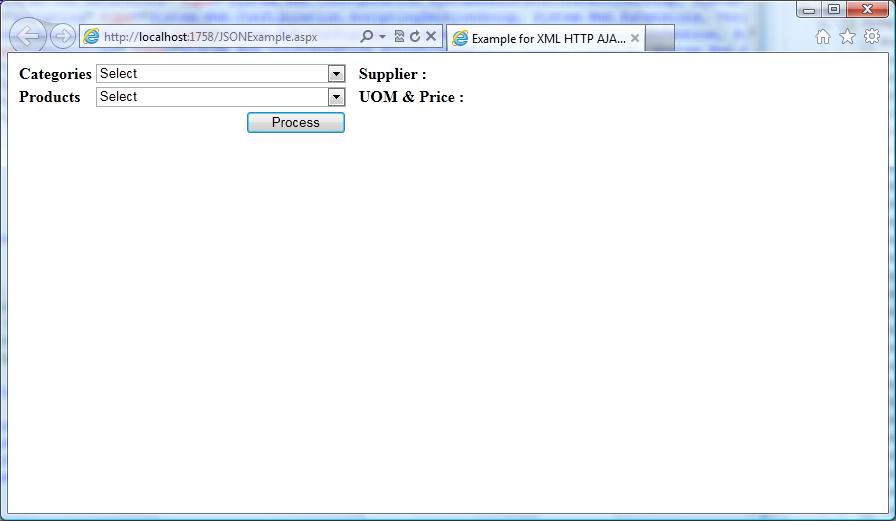
In this post, I am going to show an example to understand how to implement JSON with XML HTTP AJAX in ASP.NET pages. I am using Northwind database in this example, so please use the same to test the example source.

The use case scenario for this example would be
  1. In a Webpage, there should be two dropdown controls. One is to select Categories and another one is for Products.
  2. When the user select Categories dropdown box, the system should fetch the Products under the selected category and bind to the Product dropdown.
  3. When a Product selected, the system should fetch the information of selected product form the database and show in the screen (I use Supplier Name, UOM and Unit Price here to show)
  4. When Process button pressed, the system should bind the list of Orders for the product selected and show in a grid.

The implementation details would be
  1. To bind list of products for the selected Category (step 1), I am going to use XML HTTP AJAX. Once the Category selected, there will be a call to the server with required parameter. In code behind, the list of products will be fetched and converted (serialized) to JSON and return to JavaScript as a result of AJAX call. In JavaScript, the JSON will be parsed to an array and bind it to the Dropdown. (Here a collection is used to parse and use with JSON)
    Note: I am showing Loading... message in the Products dropdown by clearing existing items in the dropdown. So the system avoid selecting any items and the user get to know some data getting populated from server.
  2. When selecting a Product (step 2), there will be again a call to server using XML HTTP AJAX. The code behind will fetch the information and send back as a JSON to JavaScript. The Javascript will parse and show it to the page. (Here an object is used to parse and use with JSON)
    Note: I am showing a Progress image with Working on your request message in the screen by making screen as gray. So the system avoid doing any operations.
  3. When pressing Process button, I am making server call on the same page and bind to the GridView using code behind. (Here I am using Microsoft provided ASP.NET extension to understand how to use both the concept in a same page)

Note : As I am showing two types of Progress message such as Loading... (on Category selection), Working on your request (on Product selection), you might confuse why two different Progress action in a single page. This is an example to show how to use AJAX, so the reader can use which Progress action like to have in own project. I also use System.Threading.Thread.Sleep(1000) statement to see the Progress message in the screen. So please remove this statement to know actual performance of the program.

The implementation code

Code behind for the page generates JSON response - GetAJAXResponse.aspx

protected void Page_Load(object sender, EventArgs e)
{
    string strResponse = string.Empty;

    if (Request.QueryString["CallType"] != null)
    {
        string strCallType = Request.QueryString["CallType"].ToString();
        if (strCallType == "ProductList")
        {
            if (Request.QueryString["CategoryId"] != null)
                strResponse = GetProductViewList(Convert.ToInt32(Request.QueryString["CategoryId"].ToString()));
        }
        if (strCallType == "ProductInfo")
        {
            if (Request.QueryString["ProductId"] != null)
                strResponse = GetProductInfo(Convert.ToInt32(Request.QueryString["ProductId"].ToString()));
        }
    }

    Response.Clear();
    Response.ContentType = "text/xml";
    Response.Write(strResponse);
    Response.End();
}

public string GetProductViewList(int intCategoryId)
{
    using (SqlConnection connection = new SqlConnection(ConfigurationManager.ConnectionStrings["SQLConnection"].ConnectionString))
    {

        SqlCommand command = new SqlCommand(
               "SELECT ProductId, ProductName, CompanyName, QuantityPerUnit, UnitPrice, UnitsInStock, UnitsOnOrder, ReorderLevel, Discontinued " +
               "FROM Products JOIN Suppliers ON Suppliers.SupplierId = Products.SupplierId WHERE Products.CategoryId = " + intCategoryId, connection);

        connection.Open();
        SqlDataReader dr = command.ExecuteReader(CommandBehavior.CloseConnection);

        IList<ProductView> ProductViewList = new List<ProductView>();
        while (dr.Read())
        {
            ProductView productView = new ProductView();
            productView.ProductId = Convert.ToInt32(dr["ProductId"].ToString());
            productView.ProductName = dr["ProductName"].ToString();
            productView.SupplierName = dr["CompanyName"].ToString();
            productView.QuantityPerUnit = dr["QuantityPerUnit"].ToString();
            productView.UnitPrice = Convert.ToDouble(dr["UnitPrice"].ToString());
            productView.UnitsInStock = Convert.ToDouble(dr["UnitsInStock"].ToString());
            productView.Discontinued = Convert.ToBoolean(dr["Discontinued"].ToString());
            ProductViewList.Add(productView);
        }

        // I am delaying the response to see the Loading... message on the dropdown
        System.Threading.Thread.Sleep(1000);

        System.Web.Script.Serialization.JavaScriptSerializer objSerializer = 
                new System.Web.Script.Serialization.JavaScriptSerializer();

        return objSerializer.Serialize(ProductViewList);
    }
}

public string GetProductInfo(int intProductId)
{
    using (SqlConnection connection = new SqlConnection(ConfigurationManager.ConnectionStrings["SQLConnection"].ConnectionString))
    {

        SqlCommand command = new SqlCommand(
               "SELECT ProductId, ProductName, CompanyName, QuantityPerUnit, UnitPrice, UnitsInStock, UnitsOnOrder, ReorderLevel, Discontinued " +
               "FROM Products JOIN Suppliers ON Suppliers.SupplierId = Products.SupplierId WHERE Products.ProductId = " + intProductId, connection);

        connection.Open();
        SqlDataReader dr = command.ExecuteReader(CommandBehavior.CloseConnection);

        ProductView productView = new ProductView();

        while (dr.Read())
        {
            productView.ProductId = Convert.ToInt32(dr["ProductId"].ToString());
            productView.ProductName = dr["ProductName"].ToString();
            productView.SupplierName = dr["CompanyName"].ToString();
            productView.QuantityPerUnit = dr["QuantityPerUnit"].ToString();
            productView.UnitPrice = Convert.ToDouble(dr["UnitPrice"].ToString());
            productView.UnitsInStock = Convert.ToDouble(dr["UnitsInStock"].ToString());
            productView.Discontinued = Convert.ToBoolean(dr["Discontinued"].ToString());
        }

        // I am delaying the response to see the Progress (Waiting for your response) message on the screen
        System.Threading.Thread.Sleep(1000);

        System.Web.Script.Serialization.JavaScriptSerializer objSerializer =
                new System.Web.Script.Serialization.JavaScriptSerializer();

        return objSerializer.Serialize(productView);
    }
}

The aspx script for example Web Page - JSONExample.aspx
<div id="alpha" class="alpha">
    <div id="Progress" class="ProgressBox">
        <img src="Images/ajaxLoader.gif" alt="" width="200px" height="200px" />Working on your Request
    </div>
</div>
<div>
    <table>
        <tr>
            <td><b>Categories</b></td>
            <td><asp:DropDownList runat="server" ID="DDLCategories" Width="250px" DataTextField="CategoryName" DataValueField="CategoryID" onchange="BindProducts(this.id)">
                </asp:DropDownList>
            </td>
            <td style="width:5px" rowspan="2">
            </td>
            <td><b>Supplier :</b></td>
            <td><span id="spanSupplier"></span></td>
        </tr>
        <tr>
            <td><b>Products</b></td>
            <td><asp:DropDownList runat="server" ID="DDLProducts" Width="250px" onchange="ShowProductInfo(this.id)">
                <asp:ListItem Text="Select" Value="0"></asp:ListItem>
                </asp:DropDownList>
                <asp:HiddenField ID="hndProductId" runat="server" Value="0" />
            </td>
            <td><b>UOM & Price : </b></td>
            <td><span id="spanUOMPrice"></span></td>
        </tr>
        <tr>
            <td colspan="2" style="text-align:right">
                <asp:Button ID="btnProcess" Text="Process" runat="server" Width="100px" 
                    onclick="btnProcess_Click" OnClientClick="AssignHiddenValues()" />
            </td>
        </tr>
    </table>
    <asp:UpdatePanel ID="updatePanelOrders" runat="server">
        <ContentTemplate>
            <asp:GridView ID="grdViewOrders" runat="server"
                AllowPaging="true" AutoGenerateColumns="False" TabIndex="1"
                DataKeyNames="OrderID" Width="100%" GridLines="None" UseAccessibleHeader="true"
                CellPadding="3" CellSpacing="1" AllowSorting="True"
                onpageindexchanging="grdViewOrders_PageIndexChanging">
                <Columns>
                    <asp:BoundField DataField="OrderID" HeaderText="Order ID" />
                    <asp:BoundField DataField="CompanyName" HeaderText="Company Name"  />
                    <asp:BoundField DataField="EmployeeName" HeaderText="Employee Name" />
                    <asp:BoundField DataField="RequiredDate" HeaderText="Required Date" DataFormatString="{0:dd-MMMM-yyyy}" />
                </Columns>
                <RowStyle BackColor="#F7F6F3" ForeColor="#333333" />
                <FooterStyle BackColor="#5D7B9D" Font-Bold="True" ForeColor="White" />
                <PagerStyle BackColor="#284775" ForeColor="White" HorizontalAlign="Right" />
                <SelectedRowStyle BackColor="#E2DED6" Font-Bold="True" ForeColor="#333333" />
                <HeaderStyle BackColor="#5D7B9D" Font-Bold="True" ForeColor="White" />
                <EditRowStyle BackColor="#999999" />
                <AlternatingRowStyle BackColor="White" ForeColor="#284775" />
            </asp:GridView>
        </ContentTemplate>
        <Triggers>
            <asp:AsyncPostBackTrigger ControlID="btnProcess" EventName="Click"></asp:AsyncPostBackTrigger>
        </Triggers>
    </asp:UpdatePanel>
</div>

The code behind - JSONExample.aspx.cs

protected void Page_Load(object sender, EventArgs e)
{
    if (!Page.IsPostBack)
    {
        BindCategoriesDropdown();
    }
}

protected void btnProcess_Click(object sender, EventArgs e)
{
    BindGrid();
}

protected void grdViewOrders_PageIndexChanging(object sender, GridViewPageEventArgs e)
{
    grdViewOrders.PageIndex = e.NewPageIndex;
    BindGrid();
}

private void BindGrid()
{
    if (hndProductId.Value.Trim().Length > 0 && Convert.ToInt32(hndProductId.Value) > 0)
    {
        using (SqlConnection connection = new SqlConnection(ConfigurationManager.ConnectionStrings["SQLConnection"].ConnectionString))
        {

            SqlDataAdapter dataAdapter = new SqlDataAdapter(
                   "SELECT Orders.OrderID, Customers.CompanyName, Employees.FirstName + ' ' + Employees.LastName [EmployeeName], OrderDate,RequiredDate  FROM Orders " +
                   "JOIN [Order Details] OrderDetails On OrderDetails.OrderID = Orders.OrderID " +
                   "JOIN Customers ON Customers.CustomerID = Orders.CustomerID " +
                   "JOIN Employees ON Employees.EmployeeID = Orders.EmployeeID " +
                   "Where OrderDetails.ProductId = " + hndProductId.Value, connection);

            DataSet ds = new DataSet();
            connection.Open();
            dataAdapter.Fill(ds);

            grdViewOrders.DataSource = ds.Tables[0];
            grdViewOrders.DataBind();
        }
    }
}

public void BindCategoriesDropdown()
{
    using (SqlConnection connection = new SqlConnection(ConfigurationManager.ConnectionStrings["SQLConnection"].ConnectionString))
    {
        SqlCommand command = new SqlCommand("SELECT CategoryID, CategoryName FROM Categories ", connection);

        connection.Open();
        SqlDataReader dr = command.ExecuteReader(CommandBehavior.CloseConnection);

        IList<Categories> CategoriesList = new List<Categories>();
        while (dr.Read())
        {
            Categories categories = new Categories();
            categories.CategoryID = Convert.ToInt32(dr["CategoryID"].ToString());
            categories.CategoryName = dr["CategoryName"].ToString();
            CategoriesList.Add(categories);
        }

        DDLCategories.DataSource = CategoriesList;
        DDLCategories.DataBind();
        DDLCategories.Items.Insert(0, new ListItem("Select", "0"));
    }
}

The JavaScript

var is_ie = (navigator.userAgent.indexOf('MSIE') >= 0) ? 1 : 0;
var is_ie5 = (navigator.appVersion.indexOf("MSIE 5.5") != -1) ? 1 : 0;
var xmlHttp;

var vDDLProductsClientID;
var vDDLCategoriesClientID;
var vhndProductId;

function window.onload() {

    vDDLProductsClientID = '<%= DDLProducts.ClientID %>';
    vDDLCategoriesClientID = '<%= DDLCategories.ClientID %>';
    vhndProductId = '<%= hndProductId.ClientID %>';

    document.getElementById('alpha').style.display = 'none';

    // Get the height and Width of the screen
    var viewportwidth;
    var viewportheight;

    if (typeof window.innerWidth != 'undefined') {
        viewportwidth = window.innerWidth,
        viewportheight = window.innerHeight
    }
    else if (typeof document.documentElement != 'undefined' &&
             typeof document.documentElement.clientWidth != 'undefined' &&
             document.documentElement.clientWidth != 0
            ) {
                viewportwidth = document.documentElement.clientWidth,
                viewportheight = document.documentElement.clientHeight
    }
    else {
            viewportwidth = document.getElementsByTagName('body')[0].clientWidth,
            viewportheight = document.getElementsByTagName('body')[0].clientHeight
    }
    document.getElementById('alpha').style.height = viewportheight;
    document.getElementById('alpha').style.width = viewportwidth;

    document.getElementById('Progress').style.top = ((viewportheight - 200) / 2) + "px";
    document.getElementById('Progress').style.left = ((viewportwidth - 400) / 2) + "px";
}

/* This function requests the HTTPRequest, will be used to render the Dynamic content html markup 
* and it will call HandleBindProductResponse to handle the response
*/
function BindProducts(id) {
    var url = 'GetAJAXResponse.aspx?CategoryID=' + document.getElementById(id).value + '&CallType=ProductList';
    xmlHttp = createAjaxObject();
    if (xmlHttp) {
        xmlHttp.open('get', url, true);
        xmlHttp.onreadystatechange = HandleBindProductResponse;
        xmlHttp.send(null);
    }
}

/* This function is used to handler the http response 
 * This Function will bind the Products in the dropdown. 
 * When the request is in Server, the dropdown will be Loading... and once client got the response it will bind the items.*/
function HandleBindProductResponse() {

    // If Response completed
    if (xmlHttp.readyState == 4) {

        // Here is the response
        var strResponse = xmlHttp.responseText;

        // Parsing the JSON Response
        // As I generated JSON from Collection, I am getting it back as Array here
        var ArrCategories = eval("(" + strResponse + ")");

        // Getting the Product Dropdown
        var DDLProducts = document.getElementById(vDDLProductsClientID);
        while (DDLProducts.childNodes.length > 0)
            DDLProducts.removeChild(DDLProducts.childNodes[0]); // Removing every list item

        var option = document.createElement("option");
        option.value = "0"; 
        option.innerHTML = "Select";
        DDLProducts.appendChild(option);

        // Looping the array
        for (var intIndex = 0; intIndex < ArrCategories.length; intIndex++) {

            var option = document.createElement("option");
            option.value = ArrCategories[intIndex]["ProductId"];
            option.innerHTML = ArrCategories[intIndex]["ProductName"];
            DDLProducts.appendChild(option);

        }
        document.getElementById(vDDLCategoriesClientID).disabled = false;
        xmlHttp.abort();
    }
    else {
    
        document.getElementById(vDDLCategoriesClientID).disabled = true;

        // Getting the Product Dropdown
        var DDLProducts = document.getElementById(vDDLProductsClientID);
        while (DDLProducts.childNodes.length > 0)
            DDLProducts.removeChild(DDLProducts.childNodes[0]); // Removing every list item

        var option = document.createElement("option");
        option.value = "0";
        option.innerHTML = "Loading....";
        DDLProducts.appendChild(option);
    }
}

/* This function requests the HTTPRequest, will be used to render the Dynamic content html markup 
 * and it will call HandleProductInfoResponse to handle the response
 */
function ShowProductInfo(id) {
    if (parseInt(document.getElementById(id).value) > 0) {
        var url = 'GetAJAXResponse.aspx?ProductId=' + document.getElementById(id).value + '&CallType=ProductInfo';
        xmlHttp = createAjaxObject();
        if (xmlHttp) {
            xmlHttp.open('get', url, true);
            xmlHttp.onreadystatechange = HandleProductInfoResponse;
            xmlHttp.send(null);
        }
    }
}

/* This function is used to handler the http response
 * The function will fetch the details of selected item and populate in the respective field.
 * The the request is on the server, there will be a Waiting for your request message in the screen. */
function HandleProductInfoResponse() {
    // If Response completed
    if (xmlHttp.readyState == 4) {
    
        // Here is the response
        var strResponse = xmlHttp.responseText;

        // Parsing the JSON Response
        // As I generated JSON from object, I am getting it back as object only
        var ProductInfo = eval("(" + strResponse + ")");

        document.getElementById('spanSupplier').innerText = ProductInfo.SupplierName;
        document.getElementById('spanUOMPrice').innerText = ProductInfo.UnitPrice + ' (' + ProductInfo.QuantityPerUnit + ')';
        
        ShowProgress('Hide');
        document.getElementById(vDDLProductsClientID).disabled = false;
        
        xmlHttp.abort();
    }
    else {
        document.getElementById(vDDLProductsClientID).disabled = true;
        ShowProgress('Show');
    }
}

/* function to create Ajax object */
function createAjaxObject() {
    var ro;
    var browser = navigator.appName;
    if (browser == "Microsoft Internet Explorer") {
        if (xmlHttp != null) {
            xmlHttp.abort();
        }
        ro = new ActiveXObject("Microsoft.XMLHTTP");
    }
    else {
        if (xmlHttp != null) {
            xmlHttp.abort();
        }
        ro = new XMLHttpRequest();
    }
    return ro;
}

/* Get the XML Http Object */
function GetXmlHttpObject(handler) {
    var objXmlHttp = null;
    if (is_ie) {
        var strObjName = (is_ie5) ? 'Microsoft.XMLHTTP' : 'Msxml2.XMLHTTP';

        try {
            objXmlHttp = new ActiveXObject(strObjName);
            objXmlHttp.onreadystatechange = handler;
        }
        catch (e) {
            alert('Object could not be created');
            return;
        }
    }
    return objXmlHttp;
}

function xmlHttp_Get(xmlhttp, url) {
    xmlhttp.open('GET', url, true);
    xmlhttp.send(null);
}

// function to assign Product Value in the Hidden control
// Because as the dropdown items are added in Client side, it wont be accessible in code behind.
function AssignHiddenValues() {
    if (parseInt(document.getElementById(vDDLProductsClientID).value) > 0) {
        document.getElementById(vhndProductId).value = document.getElementById(vDDLProductsClientID).value;
        return true;
    }
    else {
        alert('Please select Product and Press Process');
        return false;
    }
}

// Function to show Progress message
function ShowProgress(vShowFlag) {

    if (vShowFlag == 'Show') {
    
        // Show the black image on the screen for protecting inputs
        document.getElementById('alpha').style.display = 'block';

    }
    if (vShowFlag == 'Hide') {

        // Hide the black image on the screen
        document.getElementById('alpha').style.display = 'none';
    }
}

This code has been tested with IE 6.0/9.0, Firefox 3.6, Opera 11.01

[Update 09-Feb-2012:]
As this example uses ASP.NET extension, this example was not given implementation for retaining the state of the controls created in the client side. So I posted another post which talks about how to retain the control state created in the client side when AJAX calls. The url of the post is below

Implementing XML HTTP AJAX with JSON in ASP.NET (Cascading Dropdown, retain the list and selection)

Here is the output of the example.
Page layout once loaded
 
When Categories dropdown selected

When Products dropdown selected

When Process button pressed
You can see the output in video here


download the working example of the source code in C# here and in VB here